
Welcome back, NWU Eagles!
To make the registration process as easy as possible, the important steps are listed below in the order that you need to complete them.
Registration for senior students start on 26 January in a staggered approach per faculty. All registrations are online.
Latest registration information!
Step 1: Log into your NWU email address
Log into your NWU email address with your CAS password to check for the latest notifications from NWU systems such as the NWU Student Portal, eFundi, Microsoft services and Wi-Fi.
If you do have a NWU email address, yet, set it up with these 4 steps:
To activate your email address:
- Go to Microsoft Outlook: https://365.ms.nwu.ac.za/
- Sign in with your NWU email address which is your 8-digit student number, followed by “@mynwu.ac.za”.: 12345678@mynwu.ac.za.
- Your first password is your 13-digit identity number OR passport number followed by @Nwu, e.g.: 20250120019083@Nwu.
- Choose the “Work/School” account, then select “Active Directory”
Step 2: Log in to Your Student Portal to Start the Registration Process
Tip: Please ensure that your browser settings permit pop-ups and that cookies are enabled. The registration screen opens in a new window, and both cookies and pop-ups must be active for the process to function correctly.
Open the NWU Self-Service Portal in your browser and click on “Student Portal Homepage” to log into your profile.
For help, read or download this infographic!

How do I reset my Student Portal password?
If you’ve forgotten your password or need to reset it for your Student Portal account, follow these steps:
- Open a private/incognito window in your browser. (Accessible from the 3 dots at the top right of the browser. It provides temporary private browsing by not saving your history, cookies, or site data locally after you close the window)
- Go to https://login.microsoftonline.com.
- When the Sign In window opens, enter your full MySIS email address:
NWUstudentnumber@mysis-nwu.ac.za, then click Next. - On the login screen, click “Forgot my password” to begin the reset process.
- Enter the security characters shown on screen and click Next.
- Click the Email option to receive a verification code.
- Check your student email inbox at: NWUstudentnumber@mysis-nwu.ac.za.
- Open the email from Microsoft and copy the verification code.
- Return to the reset screen, paste the verification code, and click Next.
- Enter and confirm your new password, then click Finish.
- To sign in with your new password, click the Sign in link and log in using your updated credentials.
For help, read or download this infographic!

Please note:
- Do not open multiple versions of the Student Portal on a single screen or device, as the portal may remember your previous login, which could cause issues.
- If you are currently signed in with another Microsoft account, this may interfere with your Student Portal login. Using the incorrect account will result in being logged out automatically.

Step 3: Pay Your Minimum Fees Payable
Visit the Student Accounts and Bursaries webpage for the compulsory first minimum payable fees.
There are two options you can follow when paying your minimum fees and student account:
1: Student Portal
- Log in to the Student Portal by using your login credentials (as was explained in Step 2).
- Choose the “Online Payment” option to proceed.

2: Payment Portal
Visit the Payment Portal, and select the “Student Account” to pay you minimum fees.

- Under “Payment Portal Authentication” select the option “Student and Employee Authentication”, see below:

REMEMBER! If you are a cash-paying student, you must use your 8-digit student number as your reference number when paying the minimum fees.
For help, read or download this infographic!
Step 4: Upload Financial Documents
**The following step is only applicable to bursary and loan funded students who are required to upload supporting financial documentation.
To upload financial documentation, such as bursary and loan letters:
- Log in to the Student Portal.
- Go to the “My Documents” > “Document Center” to upload:
- Bursary letters
- Loan letters
- Travel allowance info


NWU Bursaries
- You can apply for NWU bursaries by accessing the “My Bursaries” tab.
- The following NWU bursaries must be applied for by the student on the Student Portal:
- Leadership (school head boy/girl) [First-year students ONLY]
- Arts & Culture [First-year students ONLY]
- Family Discount
- Orphan
- Foster Care
- Disability
- The following NWU bursaries are automatically applied to the student account, therefore no application is required:
- Academic Merit
- Honours (1 year)
- Master’s (3 years)
- Doctoral (4 years)
Acknowledgement of debt (AOD) [returning NSFAS students only]
- Only returning NSFAS students with outstanding debt are eligible to sign an AOD to register.
- The AOD can be accessed under the “My Bursaries” tab, via the “AOD” tab on the Student Portal.
Travel allowances (TRA)
- Travel allowances are accessed via the “TRA” button.
- Students eligible for travel allowances should submit their request here, where they will be guided by the system on the information and lease agreement they need to submit.
Step 5: Review Your Faculty’s Yearbook
- Visit the yearbook webpage and click on the yearbook for your chosen faculty.
- Find your qualification (e.g. Bachelor of Social Work) and read through Year Level 1 to see the core and elective courses (modules) for your first year.
- Take a screenshot of the courses for your year 1 and keep it close by for when your register.


Step 6: Registration
Take note: Understanding registration holds
During the registration process, you might see a “registration hold” on your account. This indicates that specific administrative, financial, or academic requirements must be met before you can finalise your registration for the year. See what it means and what to do.
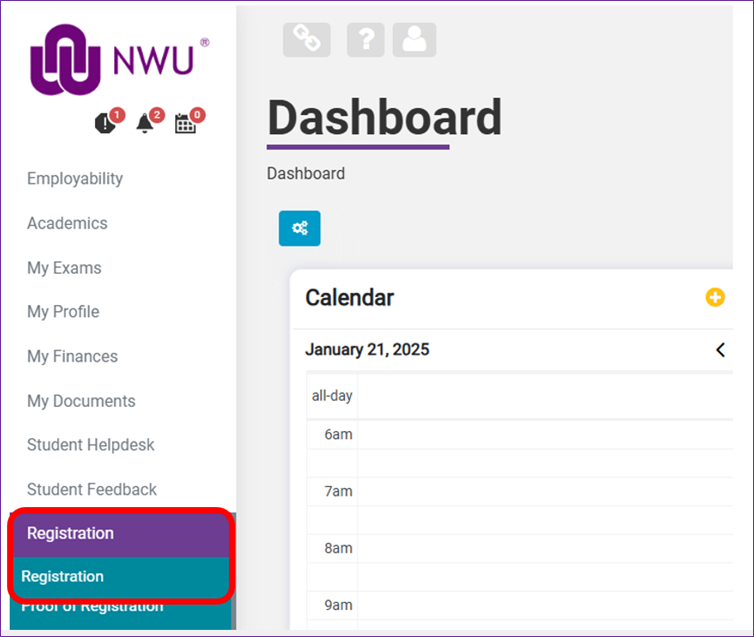
- Log into the Student Portal, and click on “Registration” tab in the left-hand menu and again on Registration.
- The Curriculum-Based Registration window will open. Please ensure that your pop-up blocker is not activated.
Important! Disable the pop-up blocker on your browser
Deactivate pop-up blocker: When you access the registration page on the Student Portal and the pop-up blocker on the browser you are using is activated, a notification will appear towards the top of your screen. Click on this notification immediately and follow the options to disable the blocker.
If the notification doesn’t appear or you prefer adjusting your settings manually, follow these steps to adjust your browser settings:
- Click on “Settings” and then the “More” icon (three dots) at the top-right corner of your browser.
- Select “Settings” from the dropdown menu.
- In the left-hand menu, select “Cookies and Site Permissions”.
- Under “All Permissions”, choose “Pop-ups and Redirects”.
- In the “Allow” section, click “Add”. Type/copy the URL of the registration page (https://siscurriculumplan-100997.campusnexus.cloud/registration/) into the dialog box, then click “Add”.
Once you’ve added the URL, it will appear in your Allow list, enabling pop-ups for the Student Portal registration page.
#2 Course registration policy
Carefully read through the terms and policies before you click to Accept. Pay attention, because this is a commitment you make with the North-West University. After you accept the conditions, a “Start” button on the right side of the screen.


#3 Course offering
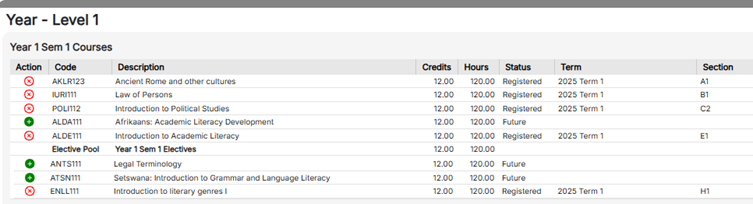
When you arrive on the “Course Offering” page this is where you will select the courses for your programme version. You will also see the short description of each course (for example: AKLR123 = Ancient Rome and other cultures). See below example:

Selecting and Registering Your Courses
When registering, the list of courses (modules) for your qualification will appear in a table format. Please read each category in the table carefully.
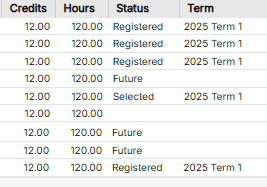
As you work through your registration, you’ll notice the status of each course will update from:
- “Future” → when the course is not yet selected
- “Selected” → once you’ve chosen the course
- “Submitted” → chosen course is being processed for registration. Please note that no action can be performed during this status.
- [“Paused” → this status will only show if there is any system error or exception during processing. Please note that no action can be performed during this status.]
- “Registered” → course registered successfully
How to Select a Course
Click the green icon in the far-left “Action” column next to the course name.

A pop-up window will open, showing the campus, the scheduled days and times for lectures, the lecturer’s details, and any course prerequisites or co-requisites (displayed on the far left of the screen).
- Tip: Pay careful attention to class schedules to avoid timetable clashes.
To register, click the green icon on the far-right within the pop-up window. Once selected the window will close, the icon will turn red, indicating that the course has been added to your registration list.


Check your progress
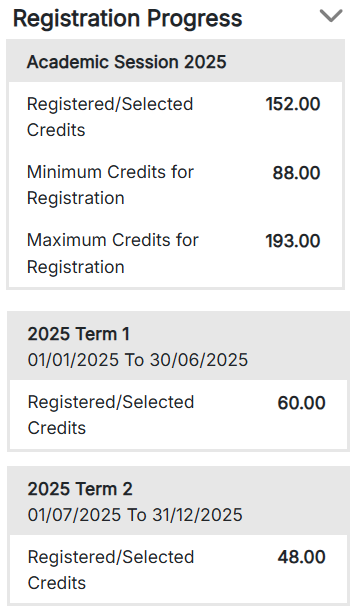
At the bottom right, you’ll find a “Registration Progress” bar that tracks:
- The number of credits you need to complete for the year to finish your qualification in the allotted amount of time.
- Minimum and maximum credits for the year
Make sure your selection meets the credit requirements before submitting your registration.
Submit Your Registration
Once you have selected everything, click Submit. The portal will evaluate and complete your registration. Click “Close”, you will be returned to the “Course Offerings” dashboard.
Click “Start” again to refresh the page. Your selected courses will now show the status as “Registered.”


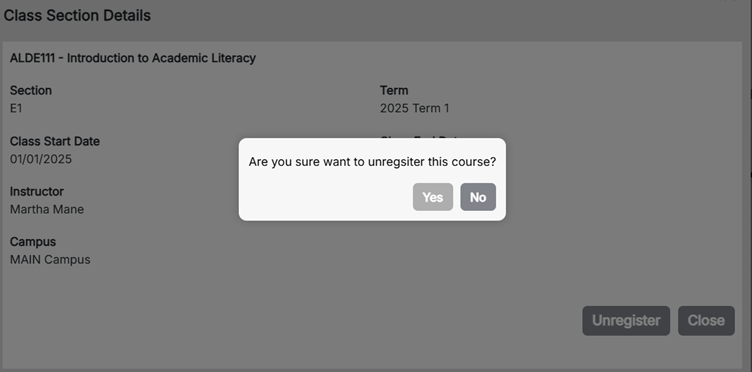
Unregistering a Course
Once registered:
- Students can remove a course by clicking the “Unregister Course” icon next to each registered course and“Unregister” within the pop-up window and “yes” to complete the process.


Step 7: Download your proof of registration
- Log into the Student Portal, and open the Registration Tab. Ensure your registration is complete and modules selected.
- Click “Proof of Registration” and from the dropdown menus, select your course and study year (e.g., 2026).
- Click “Generate” and your PoR will download as a PDF.
Step 8: Explore the student portal
The Student Portal is where you can track your progress, view your finances, documents, class resources, calendar, and so much more. Refer to infographic on how to navigate the Student Portal.
This is also where you can find the Student Helpdesk, where you can download your student records, submit requests and report issues relating to assessments, results, graduations, IT support, etc.
Step 9: Need assistance?
If you have questions or are struggling with something, please make use of the Student Helpdesk, which is accessible to you even before you have registered.
- Log in to the Student Portal and click on Student Portal Homepage.
- Select the Student Helpdesk on the left menu.
- Click “Add” to create a new ticket.
- Select the appropriate category (e.g. IT support, admission, etc.) and subcategory (where applicable) - and provide a detailed description of your issue.
- Submit your ticket and track its progress via email.
Please note:
- The timeline for resolving the ticket may vary depending on the nature of the submitted request.
- You can only log one ticket at a time per subcategory.
- E.g. if you have logged a ticket in the category, IT support, subcategory Wi-Fi, you will only be able to log a ticket in the subcategory Wi-Fi again once the first ticket has been resolved.

